CrewOS 普通用户操作手册CrewOS User Manual for Workspace Users
本手册默认以中文呈现,并可切换到英文。它覆盖普通 CrewOS 用户在登录、对话、上传附件、查看生成文件、管理项目、跟踪任务、继续会话、共享会话、编辑 HTML 产物、连接项目应用与调整个人设置时会遇到的主要功能和交互。
This manual defaults to Chinese and can be switched to English. It covers the core interactions a normal CrewOS user may face: login, chat, attachments, generated files, projects, tasks, sessions, session sharing, HTML artifact editing, project app connections, and personal settings.
CrewOSUpdated: 2026-07-02Default language: 中文English toggle included
If a page or button is missing, your role, project access, namespace access, or admin permission may differ. Normal users mainly use Workspace, Projects, Tasks, Sessions, and Settings; admins also see Admin Center.
最快上手路线Fastest Way to Start
登录 CrewOS。如果系统要求 MFA,请输入验证码或使用通行密钥。Log in to CrewOS. If MFA is required, enter the verification code or use a passkey.
进入左侧 Workspace,在输入框写清楚目标、背景、输出格式和截止要求。Open Workspace, then describe the goal, context, required output format, and deadline.
需要引用材料时,点击回形针、拖拽文件,或直接粘贴截图。When reference material is needed, click the paperclip, drag files in, or paste screenshots.
发送后观察上方进度条、工具卡、任务协作面板、durable job 卡片和生成文件卡片。After sending, watch the progress steps, tool cards, task collaboration panel, durable job cards, and generated-file cards.
如输出可用,点击 Accept;如不符合要求,点击 Flag response 或继续发送具体修改指令。If the output works, click Accept. If not, click Flag response or send a precise revision instruction.
如果工作属于项目,进入项目详情查看 My responsibilities、Project work plan、项目文件夹、访问权限和关联会话。If the work belongs to a project, open project detail to review My responsibilities, Project work plan, folders, access, and linked sessions.
1. 登录、MFA 与退出1. Login, MFA, and Sign Out
用户名密码登录Username and Password Login
打开 CrewOS,若尚未登录,系统会进入 Login 页面。Open CrewOS. If you are not authenticated, the app routes you to Login.
在 Username 输入账号,在 Password 输入密码。Enter your account in Username and your password in Password.
点击 Sign in。按钮在用户名和密码都填写后才可用。Click Sign in. The button becomes available after both fields are filled.
若出现错误提示,检查账号、密码、大小写或账号是否被锁定。If an error appears, check the account, password, letter case, or whether the account is locked.
SSO 与 MFASSO and MFA
如果页面显示 Continue with ...,可通过企业 SSO 登录。If Continue with ... appears, use it for enterprise SSO login.
若要求二次验证,在 Verification method 选择方法。If second-factor verification is required, choose the method under Verification method.
使用 Authenticator App 时输入验证码;使用 passkey 时按浏览器或系统提示完成。For an authenticator app, enter the code. For passkey, follow the browser or system prompt.
可信设备可勾选 Trust device,减少后续验证频率。不要在共享电脑上勾选。You may check Trust device on a trusted machine. Do not use it on shared computers.
Sign out: click the sign-out icon in the lower-left user area, or open Settings and click Sign out. Closing the browser tab is not the same as signing out.
2. 导航、通知与快捷命令2. Navigation, Notifications, and Shortcuts
Workspace is the primary CrewOS work surface. You can ask questions, request analysis, upload materials, generate documents, start long-running tasks, retrieve team knowledge, or let multiple specialist agents collaborate.
发送一条高质量请求Send a High-Quality Request
点击左侧 Workspace。Click Workspace in the sidebar.
在输入框写明:目标、背景、受众、必须使用的材料、期望格式、语言和截止时间。State the goal, background, audience, required sources, output format, language, and deadline.
需要换行时按 Enter;需要发送时按 Shift + Enter 或点击 Send。Press Enter for a new line. Press Shift + Enter or click Send to submit.
生成中如需中止,点击 Stop。已生成的部分会尽量保留。Click Stop to interrupt generation. Partial output is kept when possible.
上传合同、PDF、表格、截图、PPT 或内部材料,让 agent 参考。Upload contracts, PDFs, spreadsheets, screenshots, decks, or internal material for agent context.
让系统继续任务:例如“按上面 reviewer feedback 重新生成”或“继续这个 task”。Continue a task, such as “regenerate using the reviewer feedback above” or “continue this task.”
提出精确修改:指出段落、截图区域、文件名、表格列名或要保留/删除的内容。Request precise edits by naming a paragraph, screenshot area, filename, table column, or content to keep/remove.
在项目聊天中处理 project scaffold 或文件夹更新建议;有权限的用户可直接 Approve 或 Reject。In project chats, review project scaffold or folder update suggestions; authorized users can Approve or Reject them directly.
会话所有者可点击 Share,把同一条会话邀请给同团队成员查看。Session owners can click Share to invite same-team members to view the same conversation.
读懂运行状态Understand Runtime Status
Routing
CrewOS 正在判断该由哪个 agent 处理。CrewOS is deciding which agent should handle the request.
Quality Check
系统可能会进行质量检查并自动重试改进。The system may run quality checks and automatically retry improvements.
Agent
专门 agent 正在生成、检索或调用工具。A specialist agent is generating, retrieving, or calling tools.
Validation
输出正在被校验或与任务要求对齐。Output is being validated against the task requirements.
Done
流程完成。仍建议检查文件、引用和关键结论。The flow is complete. Still review files, citations, and key conclusions.
Tool cards
显示工具调用、成功、失败或被拒绝。失败时可把卡片摘要发回聊天要求修复。Shows tool calls, success, failure, or denial. If a tool fails, send the card summary back and ask for a fix.
Task collaboration
复杂任务会显示任务 ID、阶段、agent 分工、运行/排队/失败/完成数量。Complex work shows task ID, phase, agent assignments, and running/queued/failed/completed counts.
Durable job
长任务会显示 job 状态、进度、最新事件和健康提示。常见状态包括 running、retrying、slow、stalled、completed-with-warnings、failed。Long-running work shows job status, progress, latest event, and health messages. Common states include running, retrying, slow, stalled, completed-with-warnings, and failed.
Review prompt
如果聊天要求你审批 scaffold、项目文件夹或回复质量,先读影响说明和证据,再点击对应按钮。If chat asks you to approve a scaffold change, folder update, or response quality decision, read the impact and evidence before clicking the action.
回复后的操作Actions After a Response
点击 Copy 复制 agent 回复。CrewOS 会尽量保留标题、列表、表格等富文本格式,方便粘贴到文档或邮件。Click Copy to copy the agent response. CrewOS tries to preserve rich formatting such as headings, lists, and tables for pasting into documents or email.
长回复会有 Full response,点击后在弹窗中完整阅读。Long replies show Full response; open it to read the full message in a modal.
满意时点击 Accept,作为正反馈。Click Accept when the response is useful.
不满意时点击 Flag response,写明问题,并给 1 或 2 分。越具体,后续修复越准确。Click Flag response, describe the issue, and choose rating 1 or 2. Specific feedback improves rework accuracy.
如果出现文件卡,点击文件名下载;HTML 文件可点击 Edit in HTML Artifact Studio 进入可视化审阅。If file cards appear, click the filename to download; HTML files can be opened with Edit in HTML Artifact Studio for visual review.
如果不是要反馈,而是继续改,请直接发送下一条明确指令,并说明保留项、修改项和目标文件。If you want a revision rather than feedback, send a direct follow-up instruction and state what to keep, what to change, and which file is affected.
If a format or size is unsupported, a yellow notice appears above the input. Dismissing it does not mean the file uploaded successfully; choose a supported file.
截图类请求写法How to Prompt With Screenshots
先说明截图用途:“请根据截图指出 UI 问题并给修改建议”。Explain the screenshot purpose, for example “Use this screenshot to identify UI problems and recommend fixes.”
指出重点区域:“看左上角导航和底部按钮,不要只看文字”。Point to the relevant area, for example “Focus on the top-left navigation and bottom buttons, not only the text.”
要求输出格式:“按严重程度列出问题,并给下一步动作”。Specify output format, for example “List issues by severity and give next actions.”
5. 生成文件与下载5. Generated Files and Downloads
当 agent 生成文件时,聊天回复下方会出现文件卡片。When an agent generates files, file cards appear below the response.
点击文件卡片即可下载。卡片显示文件名、类型和大小;下载会使用当前登录权限,其他未授权用户不能直接打开。Click a file card to download it. The card shows filename, type, and size; downloads use your current login permissions, so unauthorized users cannot open them directly.
如果文件是 HTML,会额外出现 Edit in HTML Artifact Studio。If the file is HTML, Edit in HTML Artifact Studio also appears.
如果文件来自 task,也可以在 task 详情页的 artifacts / linked jobs 中重新打开或下载。If the file belongs to a task, you can also reopen or download it from the task detail artifacts or linked jobs area.
如果文件被归入项目文件夹,可在项目详情的 Project folders 中按文件夹、类型、deal phase、团队或搜索词查找。If a file is added to a project folder, find it on project detail under Project folders by folder, type, deal phase, team, or search term.
下载失败时,聊天可能追加错误提示。把错误提示发回给 CrewOS,要求重新生成或修复链接。If download fails, the chat may append an error notice. Send that notice back and ask CrewOS to regenerate or fix the link.
Recommendation: open and inspect important DOCX/PPTX/PDF/HTML outputs after download. For legal packs, financial models, tokenization deal materials, or external-facing outputs, do not rely only on the chat summary.
Projects organize related sessions, tasks, documents, knowledge, folders, work plans, and access controls. Project entry points appear in the Projects area at the top of Sessions, and linked tasks, chats, or generated files can take you back to the project.
标注截图:当前项目详情页Annotated screenshot: current project detail pageProject Details
1Start chat in this project:新建一个带项目上下文的聊天。Start chat in this project: create a chat with project context.
2My responsibilities:只看分配给你或你团队的 tasks 与 work-plan items。My responsibilities: view only tasks and work-plan items assigned to you or your team.
3Project access:项目 manager/owner 可添加同团队成员或管理员,并设置 read/edit/manage。Project access: project managers/owners can add same-team members or admins and set read/edit/manage access.
4Project work plan:由 scaffold 文件提取的工作项,显示 owner、team、status、priority、source、due date 和关联活动。Project work plan: work items extracted from scaffold files, showing owner, team, status, priority, source, due date, and linked activity.
5Project folders:按文件夹和类型查找项目文件;HTML 可 View,其他文件可 Download。Project folders: find project files by folder and type; HTML can be viewed, and other files can be downloaded.
6RWA tokenization app:tokenization 项目可连接外部 MCP 应用,测试连接、维护钱包、创建和执行 token request。RWA tokenization app: tokenization projects can connect an external MCP app, test the connection, maintain wallets, and create/execute token requests.
7折叠面板:管理员或项目 manager 可查看 agent activity;项目成员可查看关联 sessions 和 scaffold docs。Collapsible panels: admins or project managers can review agent activity; project members can review linked sessions and scaffold docs.
创建项目Create a Project
进入 Sessions。Open Sessions.
在 Projects 区域点击 Create Project;如果项目很多,可先点击 All projects 查看完整列表。In the Projects area, click Create Project; if there are many projects, click All projects first to open the full list.
填写 Project name、Project type、Expected outcome;Description 可选。Fill Project name, Project type, and Expected outcome; Description is optional.
点击 Create Project。项目卡会出现在项目列表。Click Create Project. The project card appears in the list.
如需归档项目,点击 Archive project 后按提示输入 ARCHIVE;不要把归档当作删除,历史记录仍会保留。To archive a project, click Archive project and type ARCHIVE when prompted; archiving is not deletion, and history remains available.
项目详情页包含什么What Project Detail Shows
项目说明、项目类型、Expected outcome。Project description, type, and expected outcome.
project_roadmap.md 与 project_status.md 等 scaffold docs,可用 Open full content 展开长内容。project_roadmap.md, project_status.md, and other scaffold docs, with Open full content for long content.
按状态统计的 project tasks,以及任务表中的 status、priority、deadline、session、jobs、artifacts、latest activity。Project tasks summarized by status, plus a task table with status, priority, deadline, session, jobs, artifacts, and latest activity.
My responsibilities 和 Project work plan,帮助你快速判断自己负责什么、谁在负责下一步、是否逾期。My responsibilities and Project work plan, helping you see your ownership, next owners, and overdue items.
项目文件夹、文件搜索、文件下载、HTML 查看、folder update review。Project folders, document search, file downloads, HTML viewing, and folder update review.
关联会话列表、agent activity、项目访问权限。Associated sessions, agent activity, and project access controls.
项目文件夹与更新审批Project Folders and Update Approval
查找项目文件Find Project Files
在项目详情向下滚动到 Project folders。On project detail, scroll to Project folders.
用搜索框输入文件名、关键词、deal phase 或团队名。Use the search box for filename, keyword, deal phase, or team.
用 type filter 缩小到 memo、legal、model、deck、HTML 等类型。Use the type filter to narrow to memo, legal, model, deck, HTML, and similar types.
点击 View 打开 HTML,点击 Download 下载文件。Click View for HTML or Download for files.
If a member cannot see a project or download a project file, first check whether Project access includes that member, then confirm the file belongs to the project folder.
Tokenization deal projects show RWA tokenization app. When an external MCP app is active, CrewOS uses that app for wallet and token-request operations; direct internal ledger mutation is blocked.
连接或替换应用Connect or Replace the App
确认你拥有项目 manage 权限。Confirm you have manage access to the project.
填写 display name、MCP server URL 和 bearer token。Enter display name, MCP server URL, and bearer token.
点击 Connect app;如已有连接,按钮会变为 Replace app connection。Click Connect app; if a connection already exists, the button becomes Replace app connection.
点击 Test app 验证工具列表和认证;点击 Refresh 重新读取 ledger、wallet 和 request 状态。Click Test app to verify tools and authentication; click Refresh to reload ledger, wallet, and request status.
钱包与 token requestWallets and Token Requests
在 active 外部 app 下,用 Whitelist token wallet 保存 wallet address、label、beneficial owner、jurisdiction、KYC status、status、transfer limit 和 notes。With an active external app, use Whitelist token wallet to save wallet address, label, beneficial owner, jurisdiction, KYC status, status, transfer limit, and notes.
用 token operation 表单创建 subscription、transfer、redemption 或 corporate_action request。Use the token operation form to create subscription, transfer, redemption, or corporate_action requests.
查看 Token requests 的 support summary、missing supports、external operation ID;合规支持齐全后再 Approve / Reject / Execute。Review Token requests support summary, missing supports, and external operation ID; Approve / Reject / Execute only after support is complete.
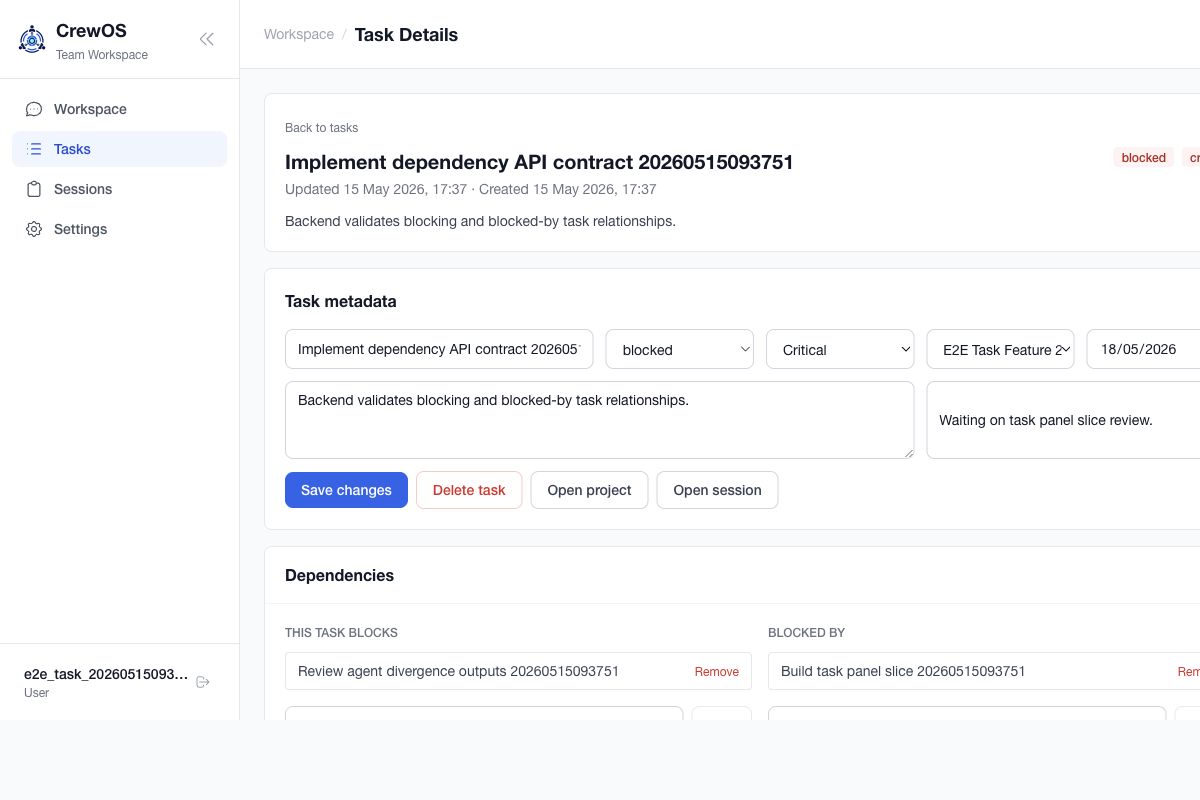
7. Tasks 任务管理7. Tasks
Tasks 用于把 AI 工作变成可跟踪、可审阅、可关联项目和产物的工作项。复杂聊天可能自动创建 task;你也可以手动创建 task。
Tasks turn AI work into trackable, reviewable work items linked to projects and artifacts. Complex chat runs may create tasks automatically; you can also create tasks manually.
查看顶部指标:Matched、Running、Needs review、Blocked、Due soon。Review top metrics: Matched, Running, Needs review, Blocked, Due soon.
用搜索框按标题或描述搜索;用下拉框按 status、project、blocked state 过滤;可按 due from / due to 过滤截止日。Search by title or description; filter by status, project, blocked state, and due date range.
点击 New task 展开创建表单。填写标题、优先级、项目、截止日、说明后点击 Create task。Click New task to open the create form. Fill title, priority, project, deadline, description, then click Create task.
点击任务卡或任务标题进入详情页。Click a task card or title to open its detail page.
任务状态含义Task Status Meaning
Status
含义Meaning
普通操作Normal action
draft
草稿或尚未启动。Draft or not started.
补充描述后保存。Add description and save.
queued
排队等待执行或等待 rework 指令。Queued for execution or waiting for rework instruction.
如为 rework,打开 session 发送具体修订要求。For rework, open session and send concrete revision instructions.
running / in_progress
agent 正在执行。Agents are executing.
等待自动刷新,必要时打开 session 查看。Wait for auto-refresh or open the session if needed.
needs_review
需要人工审核。Human review is required.
查看 findings,选择 approve、send back 或 block。Review findings, then approve, send back, or block.
blocked
外部条件或问题阻塞。Blocked by an external condition or issue.
填写 blocked reason,处理后改状态。Record blocked reason, resolve it, then update status.
completed
工作完成。Work completed.
下载和检查 artifacts。Download and inspect artifacts.
failed / cancelled
执行失败或已取消。Execution failed or was cancelled.
查看 agent runs、jobs、activity timeline,再决定重试或重开。Review agent runs, jobs, and activity timeline before retrying or reopening.
Linked jobs、artifacts 与运行健康Linked Jobs, Artifacts, and Run Health
读取 durable job 卡片Read Durable Job Cards
job 卡片会显示状态、当前进度、总步数、百分比、最新事件和 health message。Job cards show status, current progress, total steps, percentage, latest event, and health message.
retrying 表示系统正在自动重试;slow 表示运行时间偏长;stalled 表示可能需要人工查看。retrying means the system is retrying automatically; slow means the run is taking longer than expected; stalled may need human inspection.
completed-with-warnings 表示已有输出,但仍需打开 warnings 和 artifacts 检查。completed-with-warnings means output exists, but you should still inspect warnings and artifacts.
如果 job 仍 active 且明显错误,可在卡片上点击 cancel;不要取消正常运行中的长任务。If a job is still active and clearly wrong, click cancel on the card; do not cancel a normal long-running job.
从任务找回文件Recover Files from a Task
打开 task 详情页,查看 Artifacts、Linked jobs 或 agent run 输出。Open task detail and review Artifacts, Linked jobs, or agent-run output.
点击文件名下载;HTML 文件可点击 Edit HTML / Edit in HTML Artifact Studio。Click a filename to download it; for HTML, click Edit HTML / Edit in HTML Artifact Studio.
如果任务来自项目,使用 Open project 检查文件是否也已进入项目文件夹。If the task belongs to a project, use Open project to check whether the file is also in project folders.
任务详情页的关键动作Key Actions on Task Detail
Copy task id:复制 task ID,用于聊天中让 CrewOS 继续或修复同一个 task。Copy task id: copy task ID so CrewOS can continue or fix the same task in chat.
Open session:回到原始聊天查看上下文或发送 rework 指令。Open session: return to the original chat for context or rework instructions.
Open project:进入关联项目。Open project: open the linked project.
Save changes:保存手动修改的元数据。Save changes: save manual metadata edits.
Delete task:删除任务,需要输入 DELETE 确认。Delete task: delete the task after typing DELETE.
Mark ready for review / Mark complete:当所有 agent work 已 settled,但任务未前进时使用。Mark ready for review / Mark complete: use when all agent work has settled but the task has not advanced.
Approve and complete:review 通过并完成任务。Approve and complete: approve review and complete the task.
Send back to agents:要求 agent 返工。随后在原 session 发送具体返工要求;只点击按钮但不写要求,agent 可能不知道要改哪里。Send back to agents: request rework. Then send concrete rework instructions in the original session; clicking the button without instructions may leave agents without enough context.
Mark blocked:必须填写 block reason。Mark blocked: a block reason is required.
8. Sessions 会话记录8. Sessions
Sessions 用于回看、继续、关闭和归档聊天记录。它也是项目列表的入口。
Sessions let you review, continue, close, and archive conversations. It is also where project cards are listed.
点击左侧 Sessions。Click Sessions in the sidebar.
在 Filter 中选择 All、Open、Closed 或 Archived。Use Filter to choose All, Open, Closed, or Archived.
点击某条 session 打开详情。Click a session to open detail.
Open 状态的 session 可以点击 Close;Closed 状态可点击 Archive。An open session can be Closed; a closed session can be Archived.
在 session 详情页可用 Search messages... 搜索消息。On session detail, use Search messages... to search messages.
如果 session 仍 open,点击 Continue 返回聊天继续上下文。If the session is still open, click Continue to resume the chat context.
共享会话Session Sharing
作为会话所有者邀请别人Invite Someone as Session Owner
在聊天或 session 详情中打开 Share 面板。Open the Share panel from chat or session detail.
选择同团队用户,可选填写 message。Select a same-team user and optionally add a message.
点击 Send invite。系统会生成邀请 URL,并在 shares 列表显示状态。Click Send invite. CrewOS creates an invitation URL and shows the status in the shares list.
如果不再希望对方访问,点击该 share 的 Revoke。If the person should no longer have access, click Revoke on that share.
作为受邀用户打开会话Open a Shared Session as Invitee
打开邀请链接,按提示登录 CrewOS。Open the invite link and sign in to CrewOS if prompted.
接受后页面会显示 Invitation accepted 或 Shared with you。After acceptance, the page shows Invitation accepted or Shared with you.
你可以查看该会话和可授权的文件;是否能继续、下载或查看项目,仍取决于原会话和项目权限。You can view the session and authorized files; the ability to continue, download, or view the project still depends on original session and project permissions.
9. HTML Artifact Studio9. HTML Artifact Studio
当 CrewOS 生成 HTML 文件时,文件卡会显示 Edit in HTML Artifact Studio。这里可以像审阅设计稿一样圈选区域、写评论、让 CrewOS 按评论重排或清理布局,也可以手动编辑 HTML。Studio 会保留来源 session,并使用登录权限下载文件。
When CrewOS generates an HTML file, its file card shows Edit in HTML Artifact Studio. The Studio lets you mark areas, add comments, ask CrewOS to revise layout, or manually edit HTML. It preserves the source session and uses authenticated downloads.
标注截图:HTML Artifact StudioAnnotated screenshot: HTML Artifact StudioArtifact Studio
1点击 Add comment,在预览区拖拽框选需要修改的区域。Click Add comment, then drag over the preview area to mark a region.
2在评论框写具体要求,例如“增加留白”“表格列对齐”“删除重复标题”。Write a specific request, such as “add whitespace,” “align table columns,” or “remove duplicate heading.”
3点击 Apply comments with CrewOS,让 CrewOS 生成修订版本。Click Apply comments with CrewOS to generate a revised version.
4Advanced HTML 打开源代码编辑区。仅在你要手动改 HTML 时使用。Advanced HTML opens source editing. Use it only when manually editing HTML.
5Save revision 保存当前源代码为新修订;Download 下载当前版本;Back to session 返回来源聊天。Save revision saves the current source as a revision; Download downloads the current version; Back to session returns to the source chat.
编辑 HTML 产物的推荐流程Recommended HTML Editing Flow
从聊天生成文件卡或 task artifact 中点击 Edit in HTML Artifact Studio / Edit HTML。From a chat file card or task artifact, click Edit in HTML Artifact Studio / Edit HTML.
先在预览中通读,确认要改的是布局、内容、图表、语言还是打印效果。Read through the preview and decide whether the issue is layout, content, charts, language, or print behavior.
点击 Add comment,拖拽圈出区域,写评论。每条评论只描述一个明确问题。Click Add comment, drag to mark an area, and write a comment. Keep each comment focused on one issue.
在 Overall request 写全局要求,例如“保持中文,保留全部数字,优化为 A4 打印”。Use Overall request for global requirements, such as “keep Chinese, preserve all numbers, optimize for A4 print.”
如果某条评论不再需要,先在评论列表删除它,再应用修改。If a comment is no longer needed, remove it from the comment list before applying changes.
点击 Apply comments with CrewOS。成功后预览会换成新版本。Click Apply comments with CrewOS. When successful, the preview changes to the new version.
如果你手动改了源代码,点击 Save revision 再下载;下载后打开 HTML 检查布局。If you manually edit source code, click Save revision before downloading; open the HTML after download to inspect layout.
10. Settings 设置10. Settings
标注截图:个人设置Annotated screenshot: personal settingsSettings
1UI language:只改变界面语言,不保证模型回复语言。聊天回复语言要在 prompt 中说明。UI language: changes interface language only. It does not guarantee model response language; specify language in the prompt.
2Command Palette:打开命令面板。Command Palette: opens the command palette.
Change Password 区域会校验当前密码。若组织接入 SSO,密码策略可能由身份系统控制。The Change Password area verifies current password. If your organization uses SSO, password policy may be managed by the identity provider.
不用时点击 Sign out。Click Sign out when done.
API Keys、外部自动化与外观API Keys, External Automation, and Appearance
创建和管理 API KeyCreate and Manage API Keys
进入 Settings,找到 API Keys 区域。Open Settings and find API Keys.
填写 key name;如希望自动过期,选择 expiration date。Enter a key name; choose an expiration date if it should expire automatically.
点击 create 后,完整 key 只显示一次。立即复制并存入安全的 secret manager。After creation, the full key is shown only once. Copy it immediately into a secure secret manager.
列表会显示 key name、prefix、last used、expires 和 revoke 操作。怀疑泄露时立即 Revoke。The list shows key name, prefix, last used, expires, and revoke action. Click Revoke immediately if exposure is suspected.
API key 代表你的账号权限。不要把它写进聊天、截图、Git 仓库或共享文档。
An API key represents your account permissions. Do not put it in chat, screenshots, Git repositories, or shared documents.
Shortcuts、Appearance 与团队品牌Shortcuts, Appearance, and Team Branding
Shortcuts 可查看命令面板和常用快捷键。Shortcuts shows the command palette and common keyboard shortcuts.
Appearance 可选择 system、light 或 dark theme。Appearance lets you choose system, light, or dark theme.
管理员可能看到 team branding:app display name、logo URL、primary/accent color、login message 和 contrast warning。Admins may see team branding controls: app display name, logo URL, primary/accent color, login message, and contrast warning.
品牌设置影响团队界面。普通用户通常只调整个人语言、主题和安全设置。Branding affects the team interface. Normal users usually change only personal language, theme, and security settings.
11. 可见时的 Admin Center11. Admin Center When Visible
普通用户遇到系统异常时可把时间、session/task ID 发给管理员排查。Normal users should send timestamp and session/task ID to admins when reporting incidents.
Usage
查看 token usage、calls、errors、latency,并按时间、team、user、agent、model 过滤。View token usage, calls, errors, latency, and filter by time, team, user, agent, and model.
用于成本和异常用量排查。Used for cost and abnormal-usage investigation.
Review Queue
审批、拒绝、隔离或批处理待审项。Approve, reject, quarantine, or batch-process review items.
普通用户通常通过 task review 处理自己的工作。Normal users usually handle their own work through task review.
Knowledge Base
上传文档、创建 text entry、治理可见性、web research、topology,并查看 web research cron 可见性。Upload documents, create text entries, govern visibility, web research, topology, and inspect web research cron visibility.
普通用户主要通过聊天让 agent 检索已授权知识。Normal users mainly ask agents in chat to retrieve authorized knowledge.
Audit Log
查看和导出审计事件。View and export audit events.
遇到权限或安全问题时联系管理员检查。For permission or security issues, ask an admin to inspect it.
API Docs
查看外部 agent/API 参考、base URL、认证 header、endpoint group 和 request pattern。View external agent/API reference, base URL, authentication headers, endpoint groups, and request patterns.
需要 API key 时先到 Settings 创建,再按 API Docs 调用。Create an API key in Settings first, then follow API Docs for calls.
普通用户不应随意修改生产配置。Normal users should not change production configuration casually.
12. 常见问题与处理12. Troubleshooting
聊天没有完成或卡住Chat Does Not Finish
先看顶部 pinned activity 是否仍有 running job 或 task collaboration。Check pinned activity for running jobs or task collaboration.
如果只是长任务,等待刷新;如果明显不对,点击 Stop。If it is a long job, wait for refresh; if clearly wrong, click Stop.
打开关联 task,查看 agent runs、linked jobs、activity timeline。Open the linked task and review agent runs, linked jobs, and activity timeline.
在原 session 发送:“请继续/修复 task [ID],上次停在 [现象]”。In the original session, send: “Please continue/fix task [ID]; the previous run stopped at [symptom].”
输出不理解我的需求Output Misunderstands the Request
直接指出错误,不要只说“不对”。State the exact issue; do not only say “wrong.”
给出保留项和修改项:“保留 A/B/C,只重写第 3 部分”。State what to preserve and change, such as “keep A/B/C and rewrite only section 3.”
如果是文件,指出文件名、页码、段落、截图区域或表格列。For files, name the filename, page, paragraph, screenshot area, or table column.
需要记录负反馈时点击 Flag response。Click Flag response when feedback should be recorded.
附件不能上传Attachment Cannot Upload
确认文件格式在支持列表中。Confirm the file format is supported.
确认单文件不超过 10 MB。Confirm the single file is under 10 MB.
截图建议保存为 PNG/JPG,或直接复制粘贴。For screenshots, save as PNG/JPG or paste directly.
找不到 Admin Center 或 Knowledge BaseCannot Find Admin Center or Knowledge Base
这通常是权限限制。普通用户不会看到 Admin Center。This is usually permission-related. Normal users do not see Admin Center.
普通用户可在聊天中要求 CrewOS 搜索已授权知识库。Normal users can ask CrewOS in chat to search authorized knowledge.
如果确实需要上传或治理知识,请联系管理员。If you need to upload or govern knowledge, contact an admin.
看不到项目或项目文件Cannot See a Project or Project File
确认你打开的是正确团队账号,且项目未被归档过滤掉。Confirm you are using the correct team account and the project is not hidden by archived filters.
请项目 owner/manager 在 Project access 中确认你的权限是 read、edit 或 manage。Ask the project owner/manager to confirm your access under Project access as read, edit, or manage.
如果只缺某个文件,检查它是否已进入 Project folders,以及 folder update 是否还在 pending review。If only one file is missing, check whether it is in Project folders and whether a folder update is still pending review.
Token request 不能创建或执行Token Request Cannot Be Created or Executed
确认项目是 tokenization deal 类型,且你有 manage 权限。Confirm the project is a tokenization deal and you have manage access.
如果页面提示需要 active RWA MCP app,先连接外部应用并点击 Test app。If the page requires an active RWA MCP app, connect the external app and click Test app.
执行前检查 support summary 和 missing supports;不完整时先补齐审批或法律支持。Before execution, check support summary and missing supports; complete approvals or legal support first.
API key 丢失或疑似泄露API Key Lost or Possibly Exposed
完整 key 只显示一次;丢失后不能找回。The full key is shown only once; it cannot be recovered after loss.
在 Settings 的 API Keys 列表中 revoke 旧 key。In Settings under API Keys, revoke the old key.
创建新 key,更新外部自动化配置,并观察 last used 是否符合预期。Create a new key, update external automation, and monitor last used for expected behavior.
本手册由 CrewOS 当前代码结构与已存在的界面截图生成。实际部署可能因角色、环境配置或版本而略有差异。This manual was generated from the current CrewOS code structure and existing UI screenshots. Actual deployments may differ slightly by role, environment configuration, or version.